Recover Alight Motion Projects: What Can and Cannot Be Restored
An Alight Motion project can be restored when you saved it as a Project Package and still have its Alight link or QR code. If the local project was deleted, app data was cleared or the app was reinstalled without that backup, official support says it cannot recover the project.
Check whether recovery is possible
| Situation | Recovery verdict | Next action |
|---|---|---|
| Project Package link or QR is available | Recoverable | Open the link or scan the QR, then import the package |
| Project was deleted and no package exists | Not recoverable through Alight Motion | Stop making destructive changes; check whether a link or QR was saved elsewhere |
| App was deleted, reinstalled or its data was cleared | Not recoverable without an external package | Restore only from a previously saved Project Package |
| You signed back into the same account | Account may return; projects do not sync from sign-in | Locate a saved package rather than waiting for project sync |
| Project disappeared after a crash but data was not cleared | Status uncertain | Restart once and inspect Projects and Templates; do not reinstall |
| Project must move to another device | Transferable with a package | Export on the source device and import on the target device |
| Only a rendered video survives | Video survives, editable timeline does not | Keep the video; it is not a restorable project |
Do not treat an empty project list as permission to reinstall. First establish whether the project is missing, deleted or stored as an importable package.
Know what was actually saved
A local project is the editable timeline stored on the device. It includes the arrangement of layers, timing, effects and project settings. It is not automatically an online copy merely because the app is signed in.
A Project Package is Alight Motion’s backup and transfer format. Exporting one produces an Alight link and QR code that can open the package for import. Save both outside the device running the app so they remain available if the app or device is lost.
A rendered MP4 or other output is a finished media file. It may preserve the visual result, but it does not reconstruct the editable layer stack. Account and subscription state are also separate: signing in can restore eligible account access, but it is not project backup.
XML can represent portable project structure in workflows that support it, but it should not be assumed to replace the official Project Package recovery route. Keep the original project and verify every import before removing anything.
Back up a project before it becomes urgent
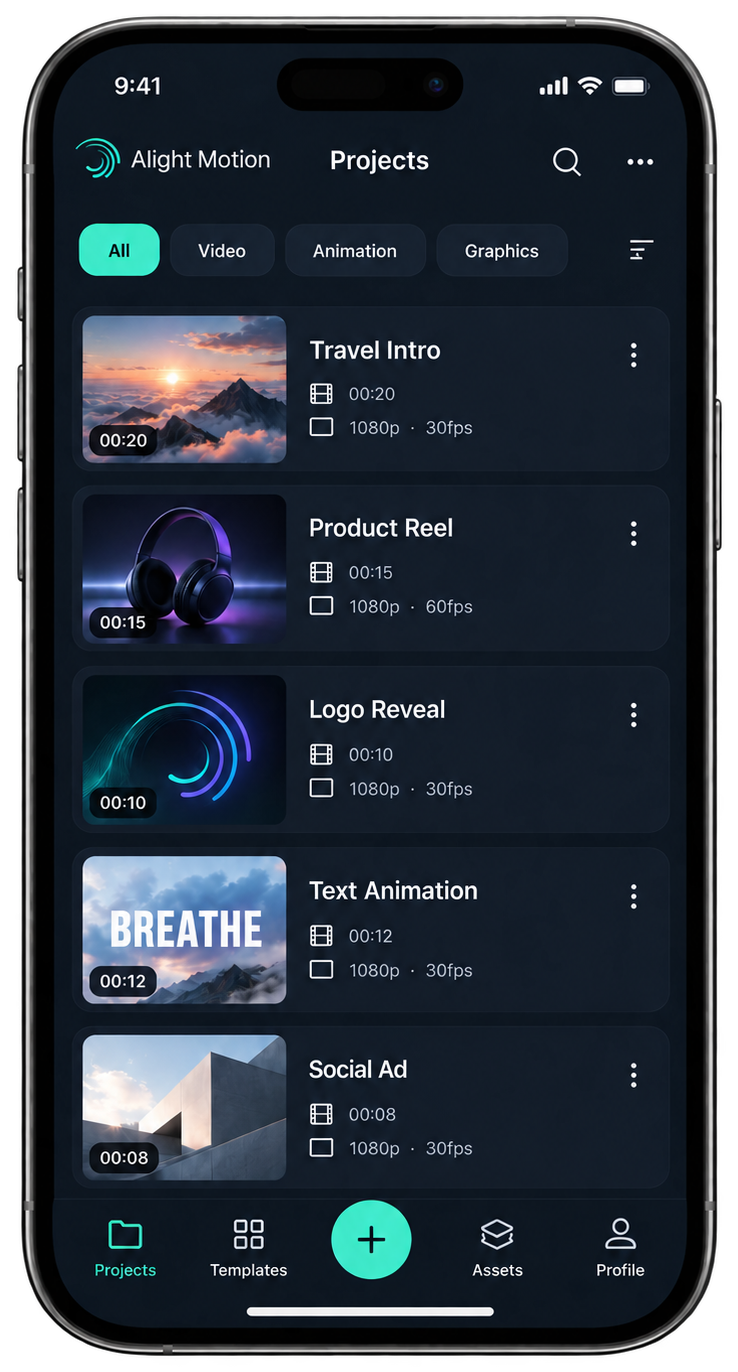
- Open Projects and locate the project that must be preserved.
- Long-press its thumbnail, choose Export, then select Project Package.
- Wait until the package upload finishes and the Alight link and QR code are shown.
- Save the link and QR outside the device running Alight Motion.
- Open the saved link on a second compatible device or controlled installation and confirm the package can be imported.
Do not rely on a screenshot that remains only in the phone gallery. If that phone is lost, reset or damaged, the backup reference disappears with it. A password manager secure note, controlled cloud folder or documented project archive can provide an independent copy; choose storage appropriate to the project’s sensitivity.
Create packages at meaningful milestones: before an app update or reinstall, before moving devices, before destructive editing and after a major approved revision. A cadence tied to project risk is more useful than claiming one schedule suits every editor.
Restore from an Alight link or QR code
Use the device on which the project should be restored:
- Tap the saved Alight link, or scan the saved QR code with a trusted scanner/camera.
- Allow the destination to open Alight Motion.
- Tap Import and wait for the completion message.
- Look for the imported item in Templates, then open or copy it into the working area as the current interface permits.
- Scrub the complete timeline and confirm that it remains editable.
An import notification alone is not sufficient proof. Open the result, preview the beginning, middle and end, inspect text fonts and linked media, and verify effects or elements that matter to the edit. Keep the source copy and package until this inspection passes.
If the project is missing rather than confirmed deleted
After a crash or forced close, restart the app once and allow the project list to load. Check both Projects and Templates, confirm you are using the expected installation, and avoid editing similarly named copies until you identify the newest one.
If the project remains absent, document the app build, OS, device, project name, last successful edit time and the event immediately before it disappeared. Then use the broader Alight Motion troubleshooting guide for installation-wide checks or prepare those facts for official support.
Do not clear cache/data, uninstall, run storage cleaners, root the phone or use unverified filesystem-recovery tools as experiments. Clearing app data or reinstalling can destroy the remaining local state. Third-party recovery utilities cannot be presented as a supported Alight Motion recovery method and may expose private media or account data.
Move a project to another device safely
Subscription availability across devices and project transfer are different operations. Sign into the appropriate account for eligible subscription access, but export each editable project as a Project Package on the original device.
Before retiring the source device:
- import the package on the target device;
- confirm the intended project version and duration;
- inspect editable layers, text, fonts, media, effects and audio;
- make a small reversible edit and preview it;
- retain the package link and QR after the test passes.
Do not erase or trade in the source device merely because the account login works on the target. The transfer is accepted only when the actual package opens as an editable project.
Keep a recovery record
For each important project, store the project name, package date, source app build and OS, link locations, QR locations, target build and OS, import result, dependency notes and editable-timeline result. This record distinguishes a genuine tested backup from a link that was copied but never opened.
If the link or QR is lost, official support says it cannot retrieve the package for you. Redundant storage and a restore drill therefore matter more than the number of backup claims on a checklist.
Frequently asked questions
Can deleted Alight Motion projects be recovered?
A deleted project can be restored only if a Project Package link or QR code was saved before deletion. Without that backup, official Alight Motion support says deleted projects and elements cannot be recovered. Do not reinstall or clear app data while checking.
Does signing in restore Alight Motion projects?
No. Signing in can restore eligible account or subscription access, but projects are stored locally and do not return through account sync. To restore or transfer an editable project, import a Project Package from its previously saved Alight link or QR code.
How do I restore an Alight Motion Project Package?
Tap the saved Alight link or scan its QR code, allow it to open Alight Motion, select Import, and wait for completion. Find the result in Templates, open it, and confirm the timeline, media, text, effects and audio remain editable.
Will reinstalling delete my Alight Motion projects?
Yes. Alight Motion states that deleting or reinstalling the app deletes locally stored projects and elements. Export important work as Project Packages first, store their links and QR codes away from the device, and test an import before uninstalling.
How do I move an Alight Motion project to another device?
Export the project as a Project Package on the source device, save its link and QR code, then open either reference on the target device and import it. Confirm the complete editable timeline before deleting the source copy or retiring the old device.