Alight Motion QR Codes: Scan, Import and Fix Problems
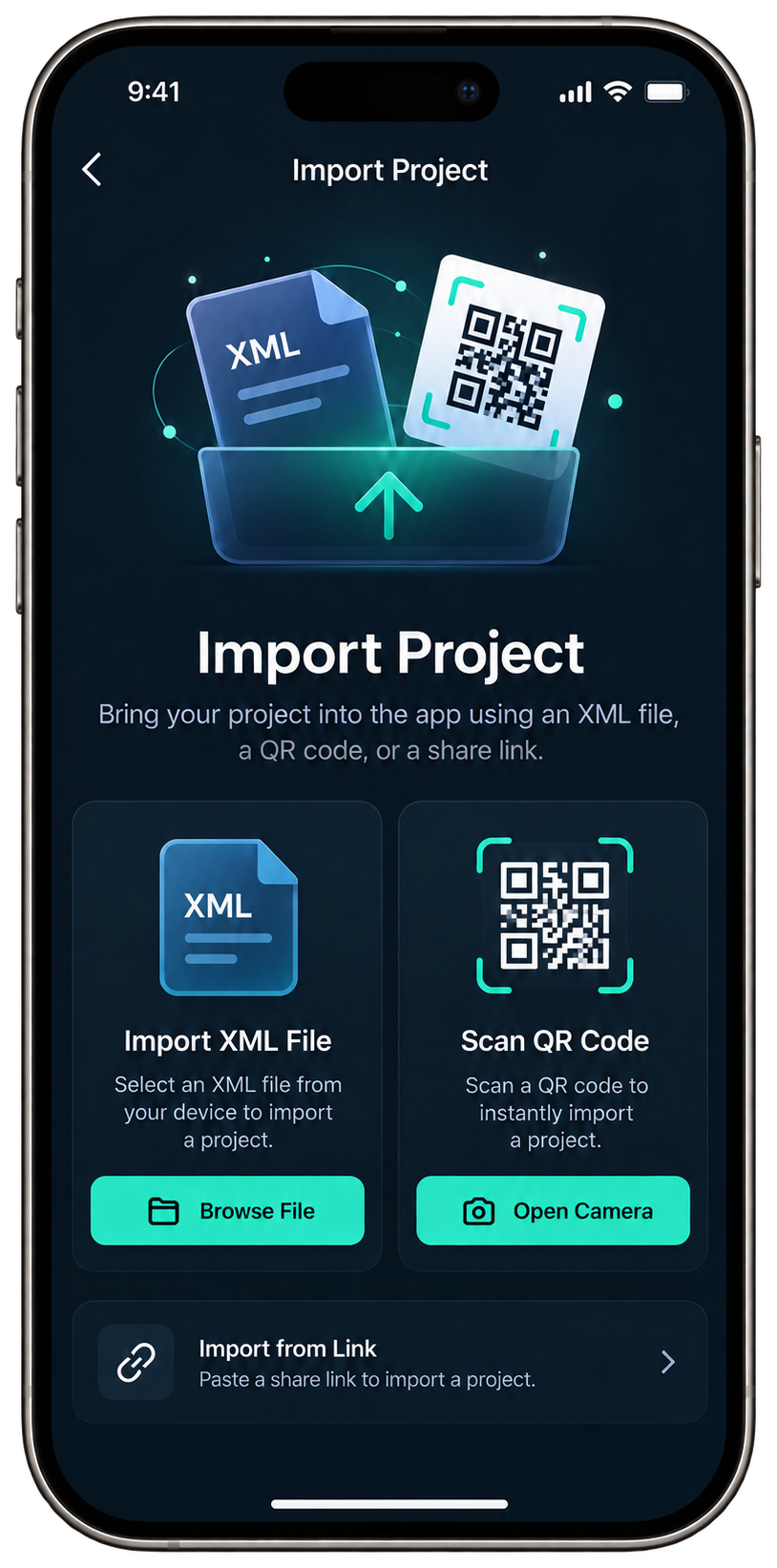
An Alight Motion QR code opens a shared Project Package link—a way to transfer an editable project. The QR image does not contain the complete project. Scan it, check the destination, open the link with Alight Motion, tap Import, then find the project in Templates.
What an Alight Motion QR code actually does
When a creator exports a project or element as a Project Package, Alight Motion can provide a shareable link and QR code. The QR represents access to that destination. Scanning starts the handoff; Alight Motion still has to receive and import the package.
That distinction prevents four common mistakes:
| Item | What it is | Role in the workflow |
|---|---|---|
| QR code | A machine-readable route to a shared destination | Scan, verify, open and troubleshoot |
| Project Package | The share format Alight Motion imports | Handoff and import outcome |
| XML file | Structured project data with its own import issues | Use the XML import flow |
| Template/preset | Reusable creative material or discovery intent | See templates and presets |
A QR image can be copied, compressed, replaced or linked somewhere unexpected. Treat the decoded destination—not the square graphic—as the object you must verify.
How to scan and import an Alight Motion QR code
When the QR code is on another screen
- Open your phone’s camera or trusted built-in QR reader.
- Hold the phone steady until the destination preview appears.
- Read the domain before opening it. Do not continue if the preview points to an unrelated login, download or advertising domain.
- Open the verified destination and allow it to hand off to Alight Motion.
- Tap Import when Alight Motion shows the package prompt.
- Open Templates, find the imported package and validate it before editing.
When the QR code is saved on the same phone
You cannot point the same camera at its own screen. Open the QR screenshot in your device’s photo app and use its QR/link detection feature, if available. Otherwise ask the creator for the original share link or display the QR on a second trusted screen.
Avoid uploading private screenshots to an unknown “online QR scanner.” Such a service receives the image and may log the decoded address. If you must use a web scanner, confirm its privacy policy, retention rules and HTTPS connection first. On-device decoding is preferable.
Check the QR before you import
Use this short preflight:
- Identify the creator and the page, message or account where the QR appeared.
- Confirm that you have permission to use the project, element, media and fonts.
- Compare the destination domain with the expected Alight share destination.
- Reject pages that demand an unrelated account password, executable, APK or payment merely to decode the QR.
- Keep the source link and creator name with the project so provenance is not lost after import.
- Back up important local projects before changing, reinstalling or clearing the app.
The QR route does not prove ownership or safety. A valid-looking code can still point to a copied package, an expired destination or an unrelated website.
Where does the imported project go?
Alight Motion’s support documentation says a Project Package imported through its link or QR appears in the Templates tab. It does not necessarily appear immediately among ordinary projects.
After import, check all of the following:
- Package title, creator/source and expected project duration.
- Canvas dimensions, frame rate and beginning/end frames.
- Layers, timing and composition dimensions.
- Fonts, linked media, audio and effects required by the project.
- Editability after duplicating the imported template into a working copy.
An “Import complete” message proves only that the package was accepted. It does not prove that licensed fonts, external media, premium effects or device-dependent features transferred correctly.
Fix Alight Motion QR-code problems by failure stage
| Symptom | Likely stage | What to do |
|---|---|---|
| Camera cannot read the QR | Image/scan | Use the original image, increase brightness, remove glare, crop surrounding clutter, or request the share link. |
| QR opens an unrelated site | Destination | Stop. Recheck the source and ask the creator for the original link. Do not install files or enter credentials. |
| QR opens the App Store on iPhone or iPad | iOS handoff | Copy the package link, open it in a separate browser, long-press Open, choose Open in Alight Motion, then tap Import. |
| Open button does nothing | Browser/app handoff | Confirm Alight Motion is installed and updated, try the original link in a normal browser, and disable only the content blocker affecting that page. |
| No Import prompt appears | Link/package | Reopen the original destination, confirm it is a Project Package link, and request a fresh share if it is unavailable. |
| Import succeeds but project seems missing | Location | Look in Templates, not only Projects. Search for the package title and retry once after confirming the import message. |
| Project opens with missing media or fonts | Dependency | Obtain licensed source assets, substitute missing resources, and compare the creator’s app/effect requirements. |
| Effects or layout differ | Compatibility | Record both app and OS versions, identify unsupported effects, and test a simplified copy. Do not reinstall before backing up local work. |
Do not treat reinstalling as a routine repair. Alight Motion states that projects are stored locally and deleting or reinstalling the app deletes them. Export Project Packages or otherwise back up important work first.
How creators make and share QR codes
Open the project or element you own, choose the Project Package export route in the current app, complete the export, and retain both outputs: the share link and its QR code. Test the QR on a second device before publishing it.
When sharing a QR code, include the package title, creator, date, app version, required fonts or media, usage terms and the underlying link. Anyone importing it can then check what the project needs before opening it.
For durable backup, keep the Project Package link or QR somewhere outside the phone. A screenshot stored only on the same device is not a resilient backup.
QR code, XML or template: which route should you use?
Use a QR or share link when someone has provided a Project Package and you want the fastest app handoff. An XML file follows a separate import path for structured project data. Use the template and preset guide when your task is finding or evaluating reusable assets rather than opening a known package.
Frequently asked questions
What is an Alight Motion QR code?
An Alight Motion QR code is a scannable route to a shared Project Package link. It does not store the complete project inside the image. After scanning, verify the destination, open it with Alight Motion, approve Import, and check Templates.
How do I scan and import an Alight Motion QR code?
Scan it with your device’s trusted QR reader, review the destination domain, and open the verified link. Allow the handoff to Alight Motion, tap Import, then look in Templates and validate the project’s layers, fonts, media, effects, and playback.
Why does an Alight Motion QR code open the App Store?
On iOS, the browser-to-app handoff can send a valid package link to the App Store. Copy the link into a separate browser, long-press Open, choose Open in Alight Motion, and then tap Import when the package prompt appears.
Is an Alight Motion QR code the same as an XML file?
No. A QR code points to a shared Project Package destination, while XML is a structured data file with separate import and dependency concerns. Use the QR workflow for link handoff and the XML guide for file-specific troubleshooting.
Is an online Alight Motion QR-code scanner safe?
Safety depends on the service because uploading a screenshot exposes that image and its decoded address. Prefer on-device QR detection. If online decoding is unavoidable, use HTTPS, review retention and privacy terms, and never submit private project images to an unknown scanner.