Alight Motion XML Files: Import, Export and Troubleshooting
An Alight Motion XML file stores structured project information such as layers, timing, keyframes, transforms, text properties and effect settings. It should not be assumed to contain every referenced video, image, audio file or font. Verify the exact file and its dependencies before importing, then inspect the reconstructed project and complete a test export.
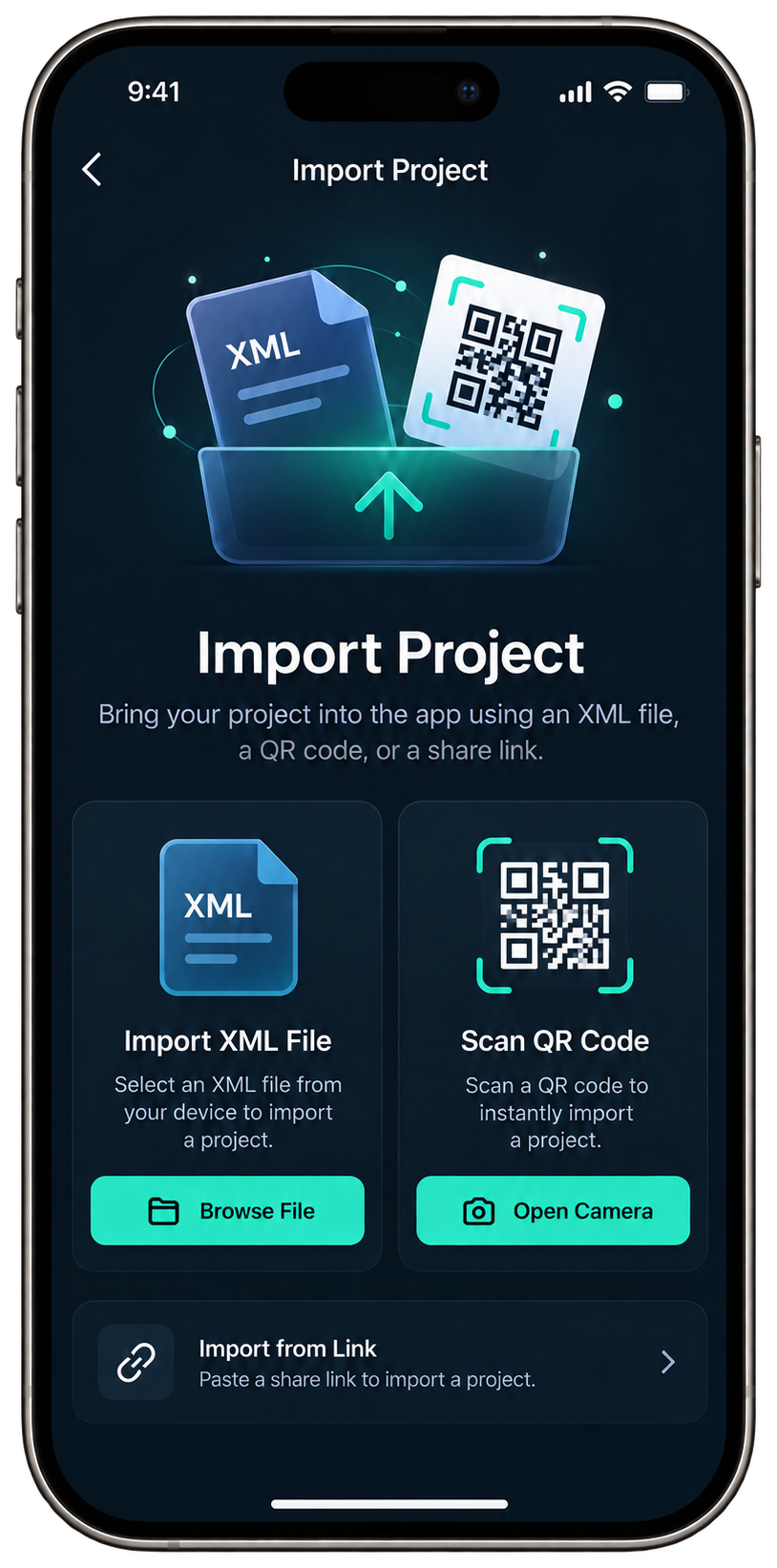
Alight Motion’s Help Center documents both XML directions. Import starts from the Templates tab’s upload control; export starts by long-pressing a project thumbnail in Projects and choosing XML from the export options.
XML, Project Package and QR Code Are Different
| Method | Payload | Delivery | Best when you need |
|---|---|---|---|
| XML | Structured project description | .xml file |
An editable project structure to import or inspect |
| Project Package | Shared project/element package | Alight link | A project or element to back up or share; see templates |
| QR code | Encoded route to a shared link | Scanned image/code | A quick handoff to a shared package; see QR codes |
| Rendered media | Finished pixels/audio | MP4, GIF, PNG sequence, still | A finished result, not editable layers |
An XML download is not automatically a preset, and a QR code is not XML. Identify the payload before choosing an import method.
Verify an XML File Before Importing
- Preserve the creator/source URL and usage terms.
- Confirm the download completed and the filename ends in
.xml. - Record the byte size and SHA-256 so later tests identify the same file.
- Open it only as text for structural inspection; do not execute unrelated files or install an APK described as an “XML pack.”
- Confirm it is intended for Alight Motion rather than another editor’s XML dialect.
- Inventory required media, fonts, audio and effects supplied by the creator.
- Back up valuable local projects before changing app versions or attempting destructive fixes.
Extension and readable text are preliminary checks, not compatibility proof. A file can be valid XML yet use unsupported elements, reference missing resources or target a different application.
How to Import XML into Alight Motion
- Download the
.xmlfile to local device storage. - Open Alight Motion and enter the Templates tab.
- Tap the upload control at the top of the screen.
- Select the XML file and wait for processing to finish.
- Find the imported project under Your templates, duplicate it and preserve one untouched copy.
After selecting the file, wait for processing to finish once. Repeated taps can create duplicate work or obscure the first error. Locate the resulting template/project, duplicate it and keep one untouched copy.
Import success is only the first gate. Open the copy and check:
- expected layer/group count and ordering;
- project dimensions, frame rate and duration;
- keyframes and timing at the start, midpoint and end;
- effect names and parameters;
- text content, font substitutions and shaping;
- missing image, video or audio references;
- first and last frames plus transition boundaries.
Replace one missing dependency at a time and preserve the intended aspect ratio and duration. Use the text and fonts guide for font-specific handling.
Compare the Imported Structure With the Source Claim
An imported project can open without reproducing the advertised result. Compare the creator’s preview or manifest with the actual project rather than treating the absence of an error as success. Record the expected and observed project dimensions, duration, frame rate, top-level layer count, named effects and visible placeholders.
Scrub the start, midpoint and end of the timeline, plus frames immediately before and after each transition. Check whether grouped layers retain their timing and whether text or shapes extend beyond masks after font or media replacement. A preview rendered by the creator may use assets, fonts or an app version that are not present on the destination device.
If the imported structure differs, preserve the untouched copy and document the first reproducible mismatch. This is more useful than deleting layers until the project happens to export, because it identifies the boundary between file compatibility and manual reconstruction.
How to Export a Project as XML
- Open Alight Motion and enter the Projects tab.
- Long-press the project thumbnail.
- Tap Export at the bottom-left.
- Select XML, then tap Export.
- Save the resulting file outside app-private storage.
After export, record the filename, size and hash. Re-import that exported file into a disposable context and compare project dimensions, layers, timing, effects and dependencies. A file being created does not prove that it is a complete backup of external media.
Keep XML, source media/fonts and at least one Project Package or other supported backup route when the project is valuable. Store the files outside app-private storage. The project recovery guide explains what can and cannot be restored after deletion.
Test an XML Round Trip
An export-and-import test checks whether an XML file preserves a simple project’s structure. Create a temporary project with text, a shape, an image placeholder, grouped layers, keyframes and one effect. Record its dimensions, frame rate, duration and layer order.
Export the sample project as XML, record the file’s SHA-256 fingerprint and keep a screenshot of the original timeline. Import the XML as a new item. Compare the layers, keyframes, effects, text and project settings. Replace the image placeholder and make a short video export.
Note which parts matched and which did not. A successful export-and-import test applies only to that sample project, app version and device. It does not guarantee that another creator’s XML file or missing media will work.
Why an XML File Does Not Import
| Failure stage | Evidence | Next check |
|---|---|---|
| Acquisition | Zero-byte, HTML/error page saved as .xml, unexpected redirect |
Revisit creator/source; verify size, text and hash |
| File structure | Parser reports malformed XML | Obtain an intact copy; do not “repair” unknown semantics blindly |
| Application compatibility | Valid XML rejected by Alight Motion | Confirm it targets Alight Motion and record creator/tested app version |
| Resource dependency | Import completes but layers are blank/substituted | Identify fonts, media, audio and effects that are missing |
| Project complexity/runtime | App stalls or closes during import | Test a known-minimal XML and record device/app state |
| Post-import export | Project opens but output fails | Use the export-failed guide with the imported-project context |
Do not uninstall the app or clear its data as an early XML fix. Local projects can be lost. First test a minimal known file, preserve the exact error, and compare whether the problem follows one XML file or affects all imports.
XML Compatibility and Transfer Limits
Compatibility belongs to the exact combination of XML bytes, Alight Motion version, platform/device and available dependencies. “Works on Android and iOS” requires separate observed tests; success on one platform does not transfer automatically to the other.
XML can preserve structured editing data, but external assets and product-specific behaviors may remain outside the file. Treat it as one layer of a backup or transfer plan, not the entire plan. For asset discovery and previews, return to Alight Motion templates and presets. A QR code instead opens a share link; it does not contain the XML file itself.
For a device migration, preserve four groups separately: XML/project structure, Project Package or supported share reference, original media/fonts/audio, and rendered reference outputs. The rendered reference lets you compare the reconstructed project even when an external dependency has changed. None of these copies should exist only inside the app being moved or replaced.
When receiving XML from another creator, request a dependency manifest and a preview generated from the same version of the file. If they cannot provide usage terms or identify required media, treat the package as incomplete rather than guessing at redistribution permission.
Frequently Asked Questions
What is an Alight Motion XML file?
It is a structured text file describing editable project information such as layers, timing, keyframes, transforms, text and effects. It may reference external media or fonts rather than embedding them, so XML alone should not be assumed to be a complete backup.
How do I import XML into Alight Motion?
Verify the file, then use the current XML upload control in Alight Motion’s Templates area and select it from device storage. After processing, duplicate the imported item, inspect layers and dependencies, replace placeholders carefully and complete a representative export.
How do I export a project as XML?
Use the current project-selection export workflow and choose XML where available. Save the resulting file outside app-private storage, record its filename, size and hash, then re-import a copy and compare layers, timing, effects and missing external dependencies.
Why is my XML file not importing?
The download may be incomplete, an error page renamed as XML, malformed, intended for another editor, incompatible with the app version or too demanding for the current runtime. Verify source, size, hash, parse result, exact error and minimal-file behavior.
Does XML include videos, audio and fonts?
Not necessarily. XML commonly stores project structure and references while media, audio and fonts remain external dependencies. Preserve a dependency list and permitted source assets, then verify every referenced layer after import instead of treating XML as a self-contained project archive.