Alight Motion Effects: Types, Uses and Troubleshooting
Alight Motion effects modify a selected layer’s pixels, shape, text, motion or visibility. Choose an effect by the job it must perform, apply it to a controlled test layer, adjust one property at a time, then confirm the complete effect stack in preview and export. The effect name alone does not predict the result.
Alight Motion Support describes a library of more than 100 effects. The useful question is not “Which effect is best?” but “What input must change, and what output should replace it?”
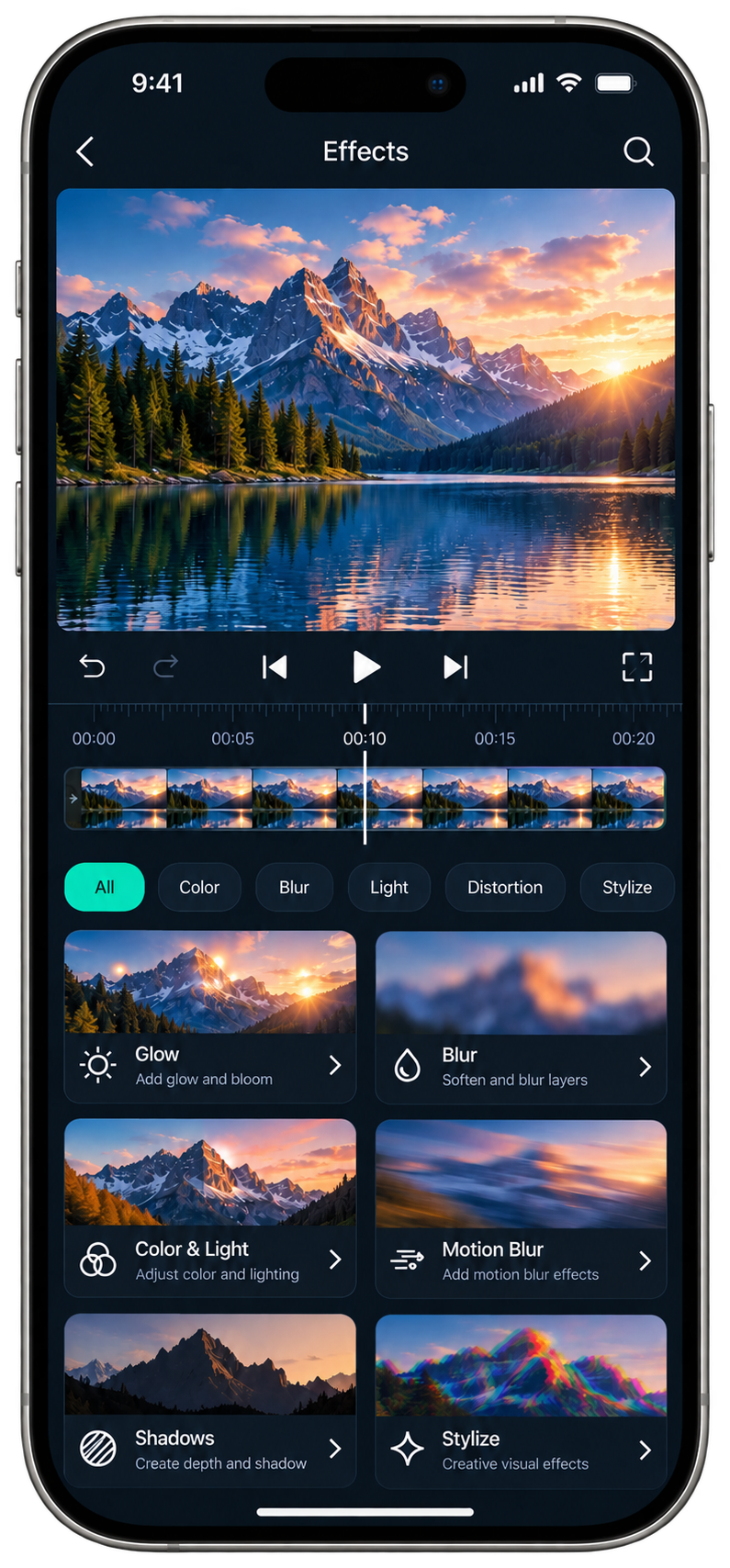
What counts as an effect in Alight Motion?
An effect is a processor attached to a layer or group. It receives the current visual state, changes it according to its properties, and sends the result to the next effect or final composition.
Four related terms describe different things:
| Term | What it is | Example decision |
|---|---|---|
| Effect | One processor with adjustable properties | Add Motion Blur to movement |
| Effect preset | Saved property values for an effect | Start from a supplied blur configuration |
| Effect stack | Ordered effects on one target | Key the background, adjust color, then add glow |
| Transition | A timed change between shots or states | Move from clip A to clip B |
A downloadable “effect link” often carries a project, preset or XML structure rather than installing a new built-in effect. Treat the file by its real delivery format and dependencies.
Which Alight Motion effect family should you choose?
Effect families describe the transformation, not a trend name. One result can combine families, but each effect should have one defined job.
| Family | Job | Representative effects |
|---|---|---|
| Color and light | Change luminance, contrast, hue or color mapping | Exposure/Gamma, Color Tune, Hue Shift, Gradient Map |
| Blur and focus | Soften pixels, imply focus or streak movement | Gaussian Blur, Lens Blur, Directional Blur, Zoom Blur |
| Move and transform | Generate or alter layer motion | Auto-Shake, Oscillate, Spin, Move Along Path |
| Distortion and warp | Bend or displace the image geometry | Wave Warp, Turbulent Displace, Pinch/Bulge, Swirl |
| Drawing and edge | Detect, draw or style boundaries | Drawing Progress, Find Edges, Edge Glow, Stroke Color |
| Glow and rays | Extend light from bright areas or edges | Light Glow, Soft Glow, Rays, Lens Flare |
| Procedural texture | Generate patterns without source footage | Clouds, Noise, Checker, Fractal Ridges |
| Repeat and tile | Duplicate pixels or layer content in patterns | Repeat, Grid Repeat, Radial Repeat, Tiles |
| Text processing | Reveal, space or rearrange characters | Text Progress, Text Spacing, Text Transform, Count Up/Down |
| Key, matte and visibility | Select or remove pixels by color/luminance/opacity | Chroma Key, Luma Key, Threshold, Pulse Opacity |
| Pseudo-3D and projection | Simulate dimensional surfaces or views | Box, Cube, Cylinder, Raster Extrude, 360º Viewer |
| Utility and timing | Reuse backgrounds or alter temporal behavior | Copy Background, Echo Keyframes, Time Quantization, Timecode |
The official effect index is the source of record for effect names. Tutorial labels can describe a recipe instead of a real effect; if a searched name does not appear, identify the underlying operation—hue change, shake, glow, displacement or repeat—before searching again.
How do you add an effect in Alight Motion?
Start with one visible layer and one effect. A small sample project helps you tell whether the effect controls work before a larger project hides the cause of a problem.
- Create or duplicate a short project.
- Add one visible image, shape, text or video layer.
- Select that layer so the effect is attached to the intended target.
- Open Effects, choose Add Effect, then select the required effect family and effect.
- Add the effect and change one obvious property.
- Move the playhead through the layer and preview the complete interval.
- Toggle or remove the effect on the duplicate to confirm that it—not another layer—caused the visible change.
- Export a short sample at the intended frame rate and resolution.
How do effect properties and keyframes work?
Each effect exposes properties suited to its algorithm. A blur can expose strength and angle; a glow can expose threshold, diffusion, intensity and color; a distortion can expose magnitude, scale, seed or evolution.
Use this control sequence:
- Set the target layer and effect.
- Identify the property that controls the intended visual change.
- Test the property at one fixed value.
- Add keyframes only when the value must change over time.
- Preview the complete interval, including the first and last frames.
Keyframing a property does not repair a wrong target layer or unsuitable effect. First prove the static effect produces the intended output. Animation comes after the effect’s input and output are correct.
Why does effect order change the result?
An effect stack runs in sequence. Effect 2 receives the output of Effect 1, not the untouched layer. Reversing two effects can therefore change which pixels, edges, colors or movement the later effect detects.
Order effects by dependency:
- create or isolate the source pattern first;
- transform or distort that pattern next;
- apply color/light treatment after the intended structure exists;
- add finishing blur, glow or edge treatment where it must see the completed movement or shape.
This is a starting logic, not a fixed universal order. A glow placed before distortion should bend with the glowing object; a glow placed after distortion reads the already-bent result.
How do you copy and paste Alight Motion effects?
Alight Motion separates one effect from the complete effect set on a layer. For one effect, select the source layer, open Effects, select the effect, open the menu beside its name and choose Copy Effect. Select the destination layer, open Effects, then use the lower menu to paste it.
After pasting, inspect dependencies. A displacement effect can reference another layer; text effects need text; copied colors or coordinates can fit the source but not the destination; membership-gated presets can remain unavailable.
Which effects fit common editing goals?
Use the lightest effect that performs the required job.
| Goal | Start with | Check before adding another effect |
|---|---|---|
| Correct exposure or contrast | Exposure/Gamma or Brightness/Contrast | dark and bright detail remain visible |
| Add bloom around highlights | Light Glow | threshold selects only intended bright areas |
| Add an outer glow to text or shapes | Soft Glow | outer-glow control and layer bounds are correct |
| Smooth supported transform motion | Motion Blur | position, scale or rotation actually changes |
| Create controlled camera shake | Auto-Shake or Oscillate | magnitude and frequency stay readable |
| Remove a color background | Chroma Key | source lighting and edge contamination are manageable |
| Reveal text over time | Text Progress | alignment remains correct as characters appear |
| Build a repeating pattern | Repeat, Grid Repeat or Radial Repeat | seams, crop and layer bounds are intentional |
Transitions combine effects, timing, layers and keyframes to connect shots. For step-by-step transition recipes, see the Alight Motion transitions guide.
Why do effects lag or behave differently?
Effects differ in render cost and supported inputs. Blur, glow, distortion, repeat and pseudo-3D stacks can increase the work required for every frame.
Motion Blur has specific limits documented by Alight Motion. It calculates blur from supported position, scale and rotation movement. Project frame rate affects the amount because movement is measured between frames. Faux-3D effects such as Box and Cylinder, movement inside procedural effects, and changes to unrelated properties are not handled as ordinary transform motion blur.
Directional Blur or Spin Blur can approximate a visual streak where automatic Motion Blur does not recognize the movement. That substitution is a visual choice, not proof that the underlying motion became supported.
For a slow project, disable one effect at a time and replay the same interval. Reduce heavy-effect strength, preview fewer active layers, and keep a duplicate before removing anything. A smooth preview does not guarantee a successful full-resolution export; test with a short export of the same project.
Why are Alight Motion effects not working?
Diagnose the pipeline in order: effect identity → target layer → input → property → stack → device load → export.
| Symptom | Failure stage | First check |
|---|---|---|
| A tutorial effect name is missing | Identity | Search the official index and translate the recipe name into its real operation |
| Effect browser opens blank | Browser/build state | Test one new project and record app build, platform and account state |
| Effect adds but nothing changes | Target/input | Confirm the selected layer is visible and the effect receives suitable pixels, text or motion |
| Property change has no result | Property/range | Reset the effect, change one dominant control and compare before/after frames |
| Text or shape glow is clipped | Layer bounds/grouping | Test the documented outer-glow/group route and inspect group bounds |
| Motion Blur stays absent | Unsupported motion | Confirm Move & Transform position, scale or rotation changes; inspect frame rate and unsupported cases |
| Faux-3D edge stretches | Projection/input bounds | Test the effect on an ungrouped duplicate and inspect source crop/resolution |
| Result changes after reordering | Stack dependency | Compare A → B with B → A using identical property values |
| Preview lags | Device/render load | Disable heavy effects one at a time and reduce active-layer load |
| Preview works but export fails | Export load | Export a simpler copy, then restore effects one at a time until the failure returns |
Do not reinstall the app as the first effects repair. Preserve the project outside app-private storage before destructive troubleshooting.
How do you verify an effect stack?
Apply effects to a duplicate of the layer, preview the complete interval, and export a short sample. Compare it with the untouched layer. If the export changes the look, check the effect order and animated values one at a time before reusing the stack.
Frequently asked questions
What are Alight Motion effects?
They are processors attached to a layer or group. Each effect receives the current visual state, changes pixels, shape, text, motion or visibility through adjustable properties, then passes its output to the next effect or final composition.
How do I add effects in Alight Motion?
Select a visible layer, open Effects, choose Add Effect, and browse or search for the required processor. Add it, change one clear property, preview the whole layer interval, then export a short sample before building a larger effect stack.
Which Alight Motion effect should I use?
Choose by the required output: Color Tune for tonal control, Motion Blur for supported transform movement, Light Glow for bright-area bloom, Chroma Key for color removal, Text Progress for character reveals, or Repeat tools for patterned duplication.
Why do Alight Motion effects lag?
Blur, glow, distortion, repeat and pseudo-3D processing can raise per-frame render work, especially when stacked across active layers. Disable effects one at a time, replay the same interval, reduce the expensive control, then verify the isolated stack through export.
Can I copy effects between layers in Alight Motion?
Yes. Copy Effect transfers one selected effect, while Copy Effects transfers the source layer’s complete effect set. Paste onto the destination layer, then inspect layer references, coordinates, text requirements, membership state and stack order before accepting the result.